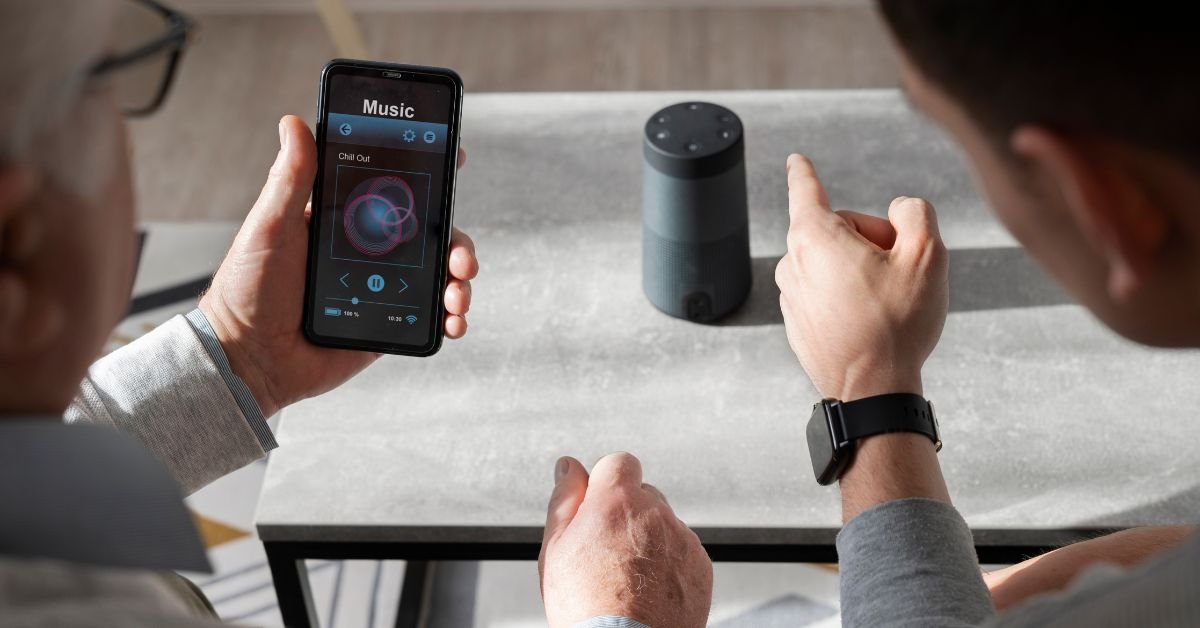
Bluetooth volume is a feature that links your Android device’s volume control with your Bluetooth audio device’s volume. In theory, this means you can control both volumes with a single slider—super convenient, right? But in practice, it can cause issues with certain headphones, speakers, and even car audio systems.
For example, some devices don’t support absolute volume, leading to either super loud or barely audible sound, with no way to fine-tune it. Others might not let you adjust the volume at all from your headphones, forcing you to use your phone every time.
Why Would You Want to Disable Absolute Bluetooth Volume?
If you’re reading this, you’ve probably run into one of these common problems:
- Volume too loud or too quiet: The slider jumps from silent to blasting with no in-between.
- Can’t control volume from headphones: Your Bluetooth device’s buttons don’t work as expected.
- Audio distortion: Some devices sound distorted or lose quality when absolute volume is enabled.
- Compatibility issues: Older Bluetooth devices, especially those using the object push profile, may not work well with absolute volume.
A user recently shared, “I love my old Bluetooth speaker, but after a recent Android update, the volume is either way too loud or barely there. I just want my old volume control back!”
If this sounds familiar, you’re in the right place.
How Does Absolute Bluetooth Volume Work?
When you connect a Bluetooth audio device to your Android phone, the system tries to sync the volume controls. This means adjusting the volume on your phone also changes it on your headphones or speaker, and vice versa. This is called absolute volume.
But not all devices support this feature. Some, especially those using older Bluetooth profiles like the object push profile, can’t handle the synced volume commands. That’s when you start seeing issues with bluetooth volume contro.
Step-by-Step: How to Disable Absolute Bluetooth Volume on Android (2025 Edition)
Ready to take back control? Here’s how to disable absolute Bluetooth volume on most Android devices in 2025. The process is easier than you might think, but it does require enabling Developer Options.
Enable Developer Options
- Open Settings on your Android device.
- Scroll down and tap About phone.
- Find Build number and tap it seven times. You’ll see a message: “You are now a developer!”
Access Developer Options
- Go back to the main Settings menu.
- Tap System (or Additional settings on some devices).
- Tap Developer options.
Disable Absolute Bluetooth Volume
- Scroll down to the Networking section.
- Find Disable absolute volume.
- Toggle it on.
That’s it! Your phone will now treat your device’s volume and your Bluetooth device’s volume as separate controls.
What Happens After You Disable Absolute Bluetooth Volume?
Once you’ve disabled absolute volume, you’ll notice a few changes:
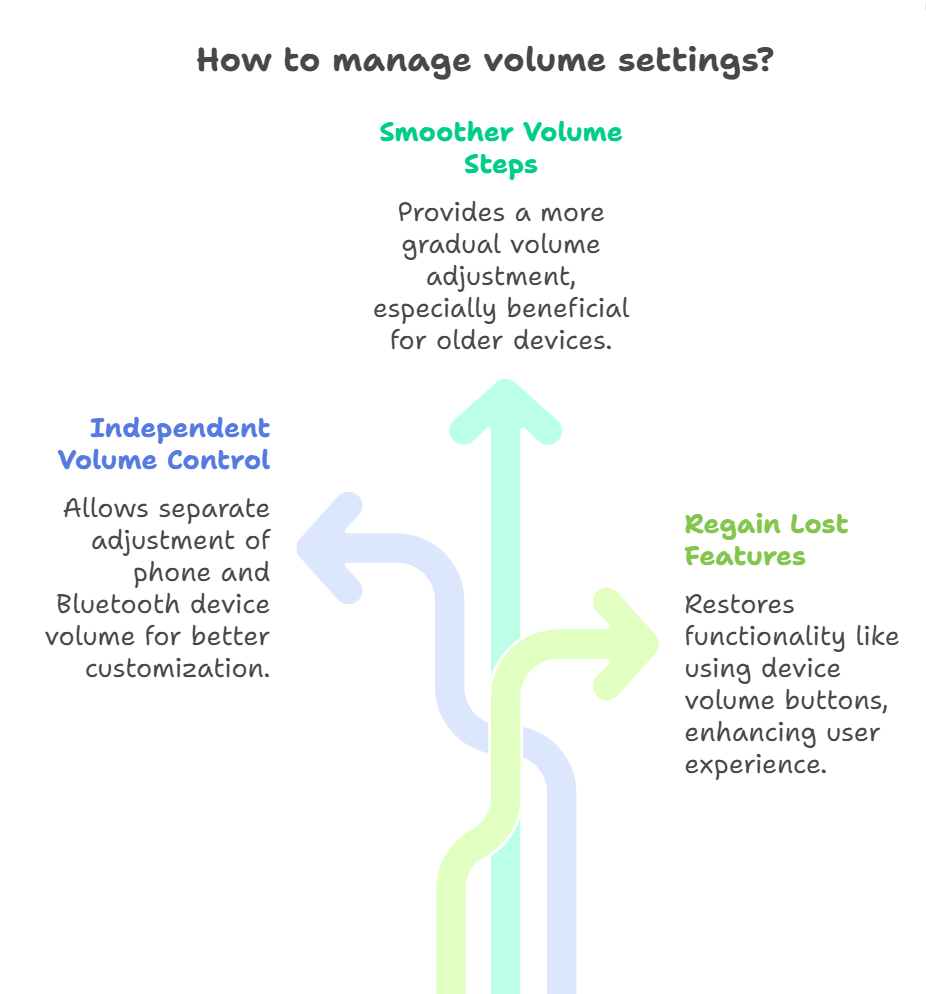
- You can adjust your phone’s volume and your Bluetooth device’s volume independently.
- Volume steps may feel smoother, especially on older devices.
- Some devices may regain lost features, like the ability to use their own volume buttons.
But there are a few things to keep in mind. Disabling absolute volume can sometimes make it harder to get the “perfect” volume, since you’ll need to adjust two sliders instead of one. However, for most users, the benefits far outweigh this minor inconvenience.
Real-Life Example: When Absolute Volume Gets in the Way
Let’s say you have a pair of classic Bluetooth headphones that you love. They’ve always worked perfectly—until you updated your Android phone. Suddenly, the volume is either whisper-quiet or ear-splitting, with nothing in between. You try using the headphones’ volume buttons, but nothing happens.
After searching online, you find out about the “android disable absolute bluetooth volume” trick. You follow the steps above, and just like that, your headphones work the way they used to. You can finally enjoy your music at the perfect volume again.
The Role of Object Push Profile and Bluetooth Volume Control
You might have seen the term object push profile (OPP) when researching Bluetooth issues. OPP is an older Bluetooth profile used for sending files between devices, but it’s also a sign that your device might not support newer features like absolute volume.
If your headphones or speaker use OPP or another legacy profile, you’re more likely to run into problems with bluetooth volume contro. Disabling absolute volume is often the best fix.
Pros and Cons: Should You Disable Absolute Bluetooth Volume?
Let’s break down the advantages and disadvantages of turning off absolute volume on Android.
Pros
- Better compatibility: Works with more Bluetooth devices, especially older models.
- Independent control: Adjust your phone and device volume separately.
- Fixes distortion: Reduces audio quality issues on some devices.
- Restores device buttons: Lets you use your headphones’ or speaker’s volume controls again.
Cons
- More steps: You’ll need to adjust two volume controls instead of one.
- Potential confusion: If you forget which volume is set where, you might get unexpected results.
- Not needed for all devices: Newer headphones and speakers usually work fine with absolute volume.
Bluetooth Volume Control in 2025: What’s Changed?
Bluetooth technology keeps evolving, and so does Android’s approach to volume control. In 2025, most flagship devices support advanced Bluetooth codecs and profiles, making absolute volume more reliable than ever. However, with the huge variety of headphones, earbuds, car stereos, and speakers out there, issues still pop up.
Manufacturers are also adding more features, like customizable volume steps and smarter device detection. But if you’re using a beloved older device, or just want more control, knowing how to disable absolute Bluetooth volume is still a must-have skill.
Troubleshooting: What If Disabling Absolute Volume Doesn’t Work?
Sometimes, even after you disable absolute volume, things still aren’t perfect. Here are a few extra tips:
- Restart your phone and Bluetooth device after changing the setting.
- Unpair and re-pair your Bluetooth device.
- Check for firmware updates for your headphones or speaker.
- Try a different device to see if the issue is with your phone or your Bluetooth accessory.
If you’re still having trouble, it might be time to consider upgrading your Bluetooth device to one that fully supports modern Android features.
Advanced Tips: Customizing Bluetooth Audio on Android
Want to go even further? Here are some expert-level tweaks for Bluetooth audio in 2025:
Adjust Bluetooth Codec
Some Android phones let you choose the Bluetooth audio codec (like SBC, AAC, aptX, or LDAC) in Developer Options. This can improve sound quality or compatibility.
Use Third-Party Apps
There are apps on the Play Store that give you even more control over bluetooth volume contro, including custom volume steps and profiles for different devices.
Automate with Routines
Use automation apps to set your preferred volume levels when you connect to specific Bluetooth devices—perfect for switching between headphones, car stereos, and speakers.
Security and Privacy: Is Disabling Absolute Volume Safe?
Disabling absolute Bluetooth volume is a safe and reversible change. It doesn’t affect your device’s security or privacy. However, always be cautious when using Developer Options—don’t change settings you’re not familiar with.
Features and Usability: What to Expect in 2025
Android’s Bluetooth features are more robust than ever, but usability still depends on your devices. Here’s what you can expect:
- Seamless pairing: Most new devices pair instantly, but older ones may need extra steps.
- Customizable controls: More devices let you customize button functions and volume steps.
- Better compatibility: Android 15 and later versions are designed to work with a wider range of Bluetooth profiles, including object push profile and others.
FAQs
Q. How do I disable absolute Bluetooth volume on Android?
A. Go to Settings > About phone > tap Build number 7 times to enable Developer Options. Then, in Developer Options, toggle on “Disable absolute volume.” This separates your phone and Bluetooth device volume controls.
Q. Why is my Bluetooth volume control not working on Android?
A. bluetooth volume contro isn’t working, it’s often due to absolute volume being enabled with a device that doesn’t support it. Disabling absolute volume usually fixes the issue.
Q. What is the object push profile in Bluetooth, and does it affect volume?
A. The object push profile is an older Bluetooth standard for sending files. Devices using this profile may not support advanced features like absolute volume, leading to compatibility issues.
Q. Will disabling absolute volume affect all my Bluetooth devices?
A. Yes, once you disable absolute volume, all connected Bluetooth audio devices will have independent volume controls. This is usually beneficial for older or incompatible devices.
Final Thoughts
If you’ve struggled with Android’s absolute Bluetooth volume, you’re not alone. Whether you’re dealing with an object push profile device, frustrated by bluetooth volume contro, or just want more flexibility, disabling absolute volume is a simple fix that can make a world of difference.
CLICK HERE FOR MORE BLOG POSTS

There’s a certain weight in the words John Authers writes—not just because of what he knows, but how he shares it. His voice doesn’t just echo facts; it builds meaning. In a world overwhelmed by rushed opinions and robotic summaries, John’s writing feels… different. It feels lived-in, thoughtful, and deeply human.
Readers don’t turn to John for headlines—they come for context. They come for that rare blend of clarity, insight, and emotional depth that turns financial journalism into something closer to storytelling. His reflections on markets, geopolitics, or human behavior aren’t just readable—they’re relatable.
What sets John apart isn’t just his experience (though he has plenty of it). It’s his ability to pause, reflect, and explain the why behind the what. He writes like someone who’s been in the room where it happens—but never forgets the reader who hasn’t.
In 2025, when AI churns out articles in milliseconds, John Authers still writes like a human—and that, more than anything, is what makes his work worth reading.