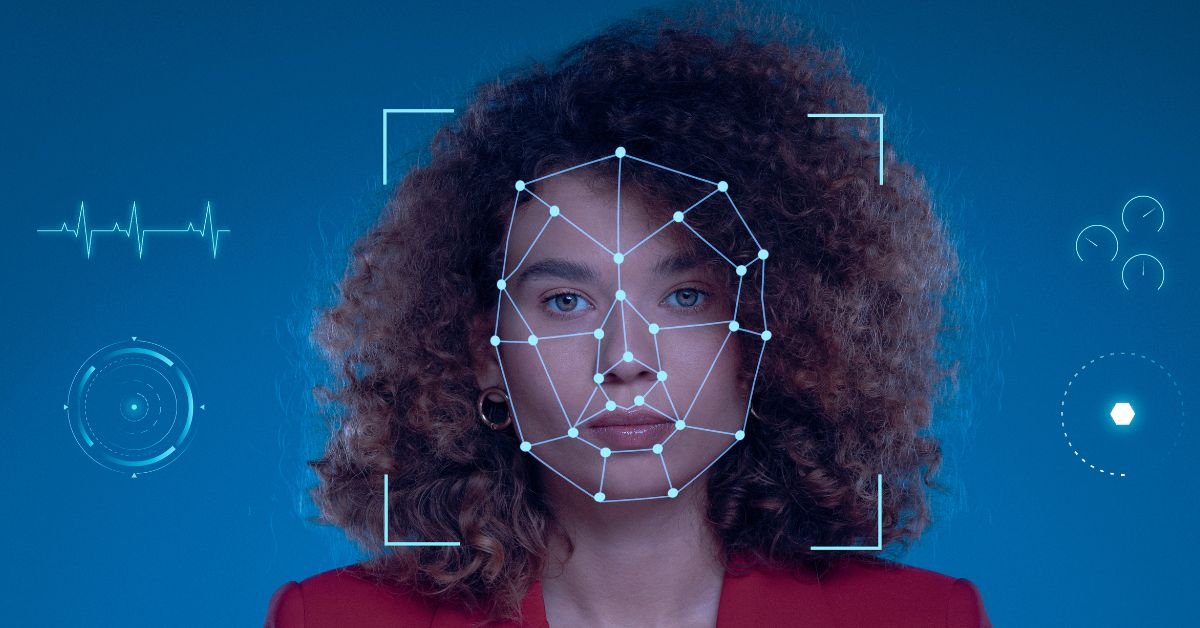
Face ID is designed to be seamless, but it’s not infallible. If you’re wondering, “Why isn’t my Face ID working?” you’re tapping into a question millions ask every month. The answer isn’t always simple, but it usually falls into a few categories:
- Hardware issues (like a damaged TrueDepth camera)
- Software glitches (after updates or app conflicts)
- Environmental factors (lighting, obstructions, or even your appearance)
- Security settings (Face ID disabled or not set up correctly)
Let’s break down each of these, so you can pinpoint what’s going wrong with your device.
Common Reasons for Face Identification Not Working
Hardware Problems: When the Camera Can’t See You
The TrueDepth camera system is the heart of Face ID. If it’s blocked, dirty, or damaged, your phone simply can’t recognize you. Here’s what to check:
- Is the camera lens clean? Even a fingerprint smudge can throw off the sensors.
- Is your case or screen protector interfering? Some accessories can block the camera.
- Has your phone been dropped or exposed to water? Physical damage can disrupt Face ID.
Real-life example:
“I dropped my iPhone in the sink, and ever since, my Face ID is not working. I tried everything, but it just won’t recognize me anymore.”
If you suspect hardware damage, a visit to an authorized repair center might be your best bet.
Software Glitches: Updates and Bugs
Sometimes, Face ID stops working after a software update. This is more common than you’d think, especially after major iOS releases.
- Did you recently update iOS? Bugs can sneak in with new features.
- Are your apps up to date? Some apps may conflict with Face ID permissions.
- Have you restarted your device? A simple reboot can clear temporary glitches.
Quick tip:
If you’re asking, “Why is my Face ID not working after an update?” try resetting Face ID (Settings > Face ID & Passcode > Reset Face ID) and set it up again.
Environmental Factors: Lighting, Angles, and More
Face ID uses infrared sensors, but it’s not immune to environmental challenges.
- Are you in bright sunlight or total darkness? Extreme lighting can confuse the sensors.
- Are you holding your phone at an odd angle? Face ID works best when the phone is 10–20 inches from your face.
- Are you wearing sunglasses, a mask, or a hat? While Face ID has improved with masks and glasses, certain accessories can still cause issues.
User quote:
“Every time I try to unlock my phone at the gym with my sweatband on, my Face ID is not working. Take off the band, and it’s fine!”
Changes in Your Appearance
Face ID is smart, but it can get tripped up by major changes in your look.
- Did you grow a beard, change your hairstyle, or get new glasses?
- Are you wearing heavy makeup or a face mask?
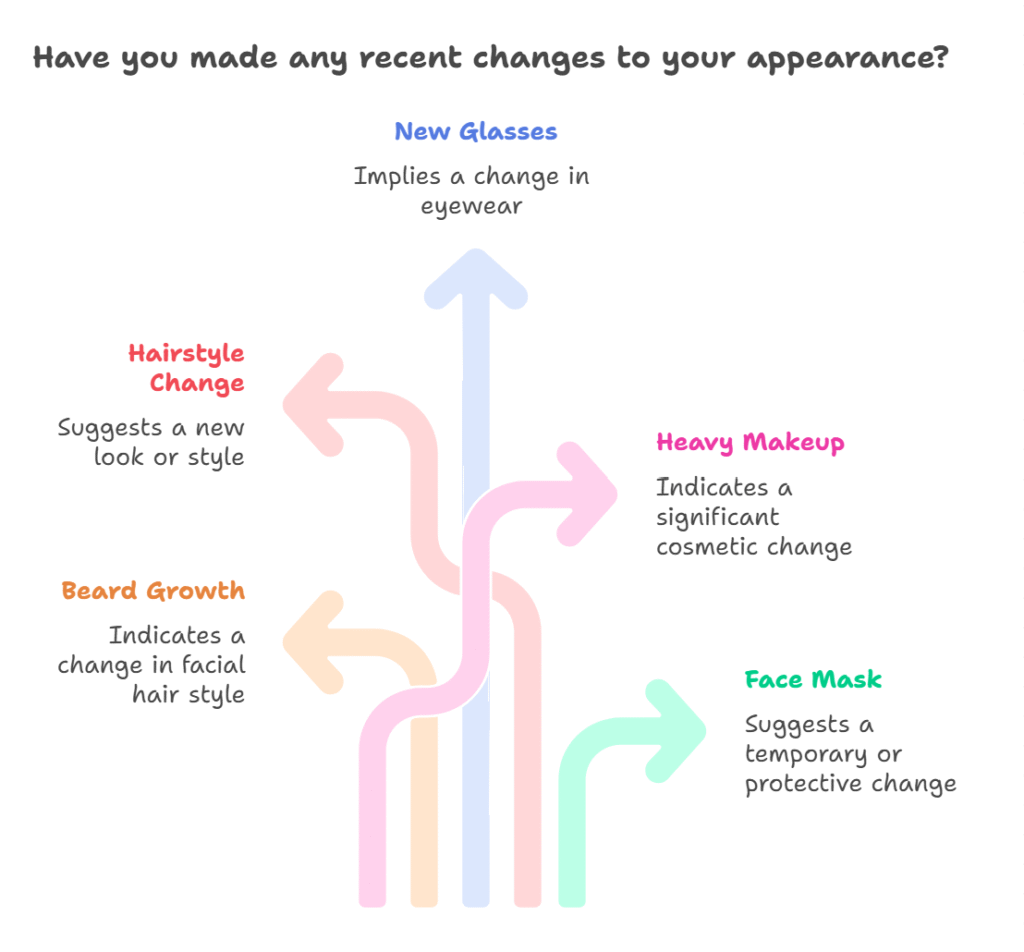
Face ID adapts over time, but sudden, dramatic changes can cause temporary hiccups.
Security Settings and Permissions
Sometimes, the problem is as simple as a setting.
- Is Face ID enabled for the features you want? (Check in Settings)
- Did you recently reset your Face ID or passcode?
- Is your device managed by an organization with restrictions?
How to Fix Face ID Not Working: Step-by-Step Solutions
Ready to get your Face ID back on track? Here’s a comprehensive troubleshooting guide for 2025.
Clean and Inspect the Camera
- Gently wipe the front camera area with a microfiber cloth.
- Remove any case or screen protector that might be blocking the sensors.
- Check for cracks or water damage.
Restart Your Device
- Hold the power button and volume up until the slider appears.
- Slide to power off, wait 30 seconds, then turn your device back on.
Update iOS and Apps
- Go to Settings > General > Software Update.
- Update all apps in the App Store.
Reset Face ID
- Go to Settings > Face ID & Passcode.
- Tap “Reset Face ID” and follow the prompts to set it up again.
Check Face ID Settings
- Ensure Face ID is enabled for iPhone Unlock, Apple Pay, and third-party apps.
- If you use “Attention Aware Features,” try toggling them off and on.
Add an Alternate Appearance
- In Face ID settings, tap “Set Up an Alternate Appearance.”
- This helps if you frequently change your look or wear accessories.
Test in Different Environments
- Try unlocking your phone in various lighting conditions.
- Remove hats, glasses, or masks to see if Face ID works better.
Contact Apple Support
- If none of the above works, hardware damage may be the culprit.
- Book a Genius Bar appointment or use Apple’s online support.
Advanced Troubleshooting: 2025’s Newest Face ID Features
With iOS 19 and the latest iPhone models, Face ID has gotten smarter—but also more complex. Here’s what’s new in 2025 and how it might affect you:
Face ID with Masks and Sunglasses
Apple’s latest update allows Face ID to work with most masks and sunglasses, but not all. If you’re still having trouble, try setting up an alternate appearance with your mask or glasses on.
Multi-User Face ID
Some iPads and iPhones now support multiple faces. If you share your device, make sure your face is registered correctly.
Face ID for App Logins
More apps now use Face ID for authentication. If face identification not working in a specific app, check the app’s settings and permissions.
Risks and Limitations: What to Watch Out For
Face ID is secure, but it’s not perfect. Here are some risks and limitations to keep in mind:
- False negatives: Sometimes, Face ID won’t recognize you even when it should.
- False positives: Rare, but possible—someone who looks like you might unlock your phone.
- Privacy concerns: Face ID data is stored securely, but always be cautious with your device.
Pros:
- Fast, hands-free unlocking
- Secure authentication for payments and apps
- Adapts to changes in your appearance
Cons:
- Can fail in certain lighting or with accessories
- Hardware damage can disable Face ID entirely
- Not all apps support Face ID yet
Real-World Example: Face ID Fails at the Worst Time
Imagine you’re at the airport, rushing to show your boarding pass. You pull out your phone, but Face ID is not working. You try again—nothing. The line behind you grows. In moments like these, having a backup passcode or alternate authentication method is crucial.
FAQs
Q. Why is my Face ID not working after an update?
A. Sometimes, software updates can introduce bugs or reset certain settings. Try restarting your device, updating all apps, and resetting Face ID. If the problem persists, check for another iOS update or contact Apple Support.
Q. Why isn’t my Face ID working in certain apps?
A. Not all apps support Face ID, and some may require you to enable it in their settings. Go to the app’s settings and look for Face ID or biometric authentication options.
Q. What should I do if my Face ID is not working after water damage?
A. Water can damage the TrueDepth camera system. If you suspect water damage, power off your device and let it dry completely. If Face ID still doesn’t work, visit an authorized repair center.
Q. Can Face ID work with a mask or sunglasses in 2025?
A. Yes, the latest iOS updates have improved Face ID’s ability to recognize users with masks and sunglasses. However, some types of masks or heavily tinted glasses may still cause issues. Try setting up an alternate appearance for better results.
Final Thoughts
Face ID not working can be a real headache, but most issues are fixable with a little patience and the right steps. Whether it’s a quick settings tweak or a trip to the repair shop, you’ve got options.
CLICK HERE FOR MORE BLOG POSTS

There’s a certain weight in the words John Authers writes—not just because of what he knows, but how he shares it. His voice doesn’t just echo facts; it builds meaning. In a world overwhelmed by rushed opinions and robotic summaries, John’s writing feels… different. It feels lived-in, thoughtful, and deeply human.
Readers don’t turn to John for headlines—they come for context. They come for that rare blend of clarity, insight, and emotional depth that turns financial journalism into something closer to storytelling. His reflections on markets, geopolitics, or human behavior aren’t just readable—they’re relatable.
What sets John apart isn’t just his experience (though he has plenty of it). It’s his ability to pause, reflect, and explain the why behind the what. He writes like someone who’s been in the room where it happens—but never forgets the reader who hasn’t.
In 2025, when AI churns out articles in milliseconds, John Authers still writes like a human—and that, more than anything, is what makes his work worth reading.