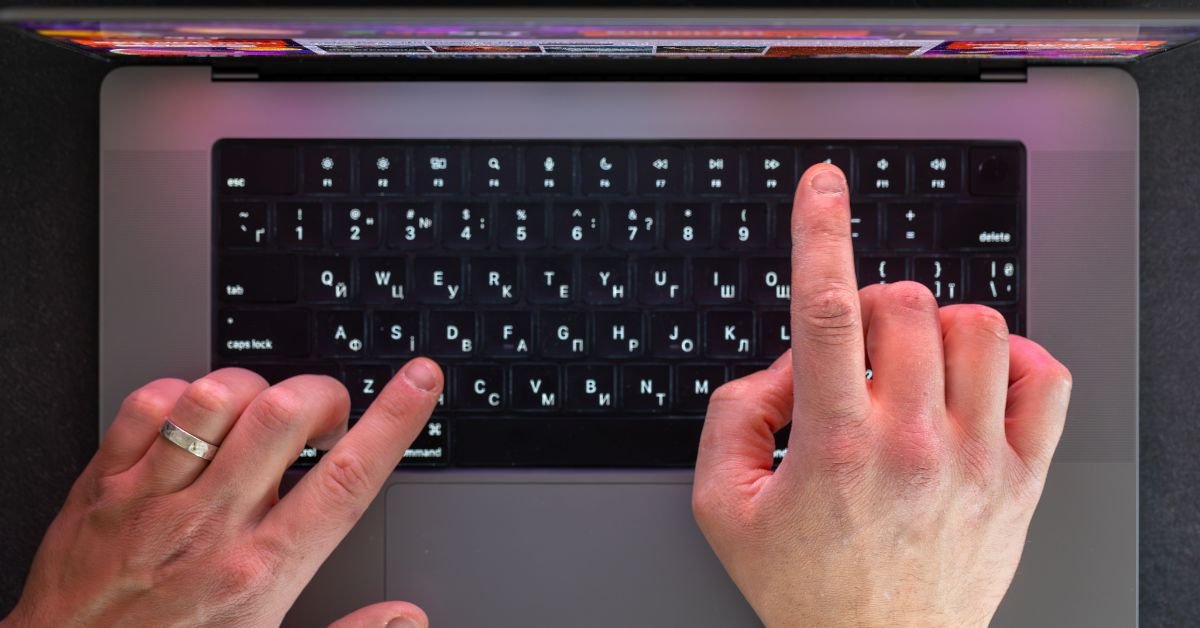
Shortcut keyboard full screen trick is one of the most sought-after productivity hacks in 2025. Whether you’re a student, a remote worker, a gamer, or just someone who loves efficiency, knowing the right keyboard shortcut for full screen can save you time and keep your workflow smooth.
Why Use a Shortcut Keyboard Full Screen?
Let’s face it—reaching for the mouse every time you want to maximize a window is a pain. Keyboard shortcuts are the secret weapon of power users. They’re faster, more precise, and once you get the hang of them, you’ll wonder how you ever lived without them.
Here’s a real-life example from a user who made the switch:
“I used to always click the maximize button, but after learning the shortcut for full screen, I can jump in and out of distraction-free mode in seconds. It’s a game-changer for coding, watching videos, and even gaming.”
If you’re ready to level up your workflow, let’s dive into the world of full screen keyboard shortcuts.
The Universal Shortcut for Full Screen: F11 and Beyond
The Classic: F11
For most browsers and many Windows apps, F11 is the magic key. Tap it once, and your window expands to fill the screen. Tap it again, and you’re back to normal.
- Works in: Chrome, Firefox, Edge, Opera, and many other apps
- Doesn’t work in: Some specialized apps (like video players or games)
Mac Users: Command + Control + F
On macOS, the shortcut is a bit different. Use Command + Control + F to toggle full screen in most apps.
- Works in: Safari, Finder, many Mac apps
- Doesn’t work in: Some third-party or legacy apps
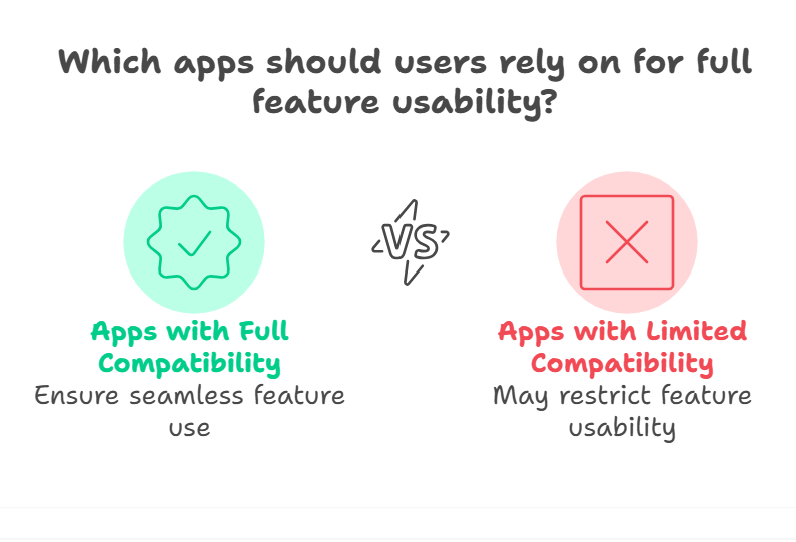
Windows 11/12: Windows Key + Up Arrow
Want to maximize a window (not true full screen, but close)? Use Windows Key + Up Arrow. This shortcut snaps your window to fill the screen, but leaves the taskbar visible.
Shortcut for Full Screen in Popular Apps
Browsers (Chrome, Firefox, Edge, Opera)
- Shortcut: F11
- What it does: Hides tabs, address bar, and taskbar for a distraction-free view
YouTube and Video Players
- Shortcut: F (while video is selected)
- What it does: Makes the video full screen (F11 may also work in browser)
Microsoft Office (Word, Excel, PowerPoint)
- Word: Alt + V, then U (Read Mode)
- Excel: No true full screen, but Ctrl + Shift + F1 hides the ribbon
- PowerPoint: F5 (starts slideshow full screen)
Task Manager Shortcut
- Open Task Manager: Ctrl + Shift + Esc
- Full screen Task Manager: Alt + D (hides details), then maximize window
Remote Desktop
- Shortcut: Ctrl + Alt + Break (toggles full screen in RDP sessions)
Full Screen vs. Maximized: What’s the Difference?
It’s easy to confuse “full screen” with “maximized.” Here’s the difference:
- Full screen: The app covers the entire display, hiding the taskbar and window borders. Great for videos, games, and presentations.
- Maximized: The app fills the screen but leaves the taskbar and window controls visible. Good for multitasking.
Knowing which shortcut to use depends on what you want to do.
Copy With Keyboard Shortcut: Boosting Productivity
While we’re talking shortcuts, don’t forget the basics. Copy with keyboard shortcut is still Ctrl + C (Windows) or Command + C (Mac). Pair it with full screen mode for ultimate efficiency—copy text, code, or images without ever leaving your distraction-free workspace.
Advanced Tips: Customizing and Creating Your Own Shortcuts
Windows Power Users
- AutoHotkey: Create custom shortcuts for full screen or any other action.
- Settings > Keyboard Shortcuts: Some apps let you remap keys natively.
Mac Power Users
- System Preferences > Keyboard > Shortcuts: Customize or add new shortcuts for any app.
Real-World Example: Full Screen Shortcuts in Action
A remote worker shares:
“During video calls, I use the shortcut keyboard full screen to focus on the presentation. Then, I quickly copy with keyboard shortcut to grab notes or screenshots. It’s made my workflow so much smoother.”
Risks and Benefits: Should You Use Full Screen Shortcuts?
Benefits
- Faster workflow: No more hunting for buttons
- Distraction-free: Perfect for focus-intensive tasks
- Universal: Works in most modern apps
Risks
- Can be confusing: Not all apps use the same shortcut
- May hide important UI elements: Be careful not to lose access to controls
Features and Usability: Full Screen Shortcuts in 2025
With Windows 12 and macOS 15, keyboard shortcuts are more customizable than ever. Many apps now let you set your own shortcut for full screen, and some even offer context-aware shortcuts that adapt to your workflow.
Touchscreen devices and tablets also support gesture-based full screen toggles, but keyboard shortcuts remain the fastest option for power users.
FAQs
Q. What is the shortcut for full screen on Windows?
A. The most common shortcut is F11 for browsers and many apps. For maximizing a window, use Windows Key + Up Arrow.
Q. How do I make Task Manager full screen with a shortcut?
A. Open Task Manager with Ctrl + Shift + Esc, then maximize the window. There’s no dedicated full screen shortcut, but you can use Alt + Space, then X to maximize.
Q. What is the shortcut for full screen on Mac?
A. Use Command + Control + F in most Mac apps to toggle full screen mode.
Q. How do I copy with keyboard shortcut while in full screen?
A. Use Ctrl + C (Windows) or Command + C (Mac) to copy, even when in full screen mode.
Final Thoughts
Learning the shortcut keyboard full screen trick is a small change that can make a big difference in your daily workflow. Whether you’re watching videos, coding, presenting, or just want to focus, knowing the right shortcut saves time and keeps you in the zone.
CLICK HERE FOR MORE BLOG POSTS

There’s a certain weight in the words John Authers writes—not just because of what he knows, but how he shares it. His voice doesn’t just echo facts; it builds meaning. In a world overwhelmed by rushed opinions and robotic summaries, John’s writing feels… different. It feels lived-in, thoughtful, and deeply human.
Readers don’t turn to John for headlines—they come for context. They come for that rare blend of clarity, insight, and emotional depth that turns financial journalism into something closer to storytelling. His reflections on markets, geopolitics, or human behavior aren’t just readable—they’re relatable.
What sets John apart isn’t just his experience (though he has plenty of it). It’s his ability to pause, reflect, and explain the why behind the what. He writes like someone who’s been in the room where it happens—but never forgets the reader who hasn’t.
In 2025, when AI churns out articles in milliseconds, John Authers still writes like a human—and that, more than anything, is what makes his work worth reading.