How to check VRAM let’s quickly cover what VRAM actually is. VRAM stands for Video Random Access Memory. It’s a special type of memory used by your graphics card (GPU) to store image data, textures, frame buffers, and more. In simple terms, VRAM is what allows your computer to render graphics smoothly—whether you’re gaming, editing videos, or just watching high-res content.
Why Should You Care About VRAM?
- Gaming: Modern games require more VRAM for higher resolutions and better textures.
- Content Creation: Video editing, 3D modeling, and graphic design apps use VRAM for previews and rendering.
- Everyday Use: Even web browsers and streaming services can benefit from more VRAM, especially with 4K content.
If you don’t have enough VRAM, you’ll notice lag, stuttering, or even crashes. That’s why it’s so important to know how much VRAM you have and whether it’s enough for your needs.
How to Check VRAM: The Easiest Methods in 2025
Let’s get practical. Here are the most reliable ways to check your VRAM on Windows, macOS, and even Linux in 2025.
How to Check VRAM on Windows 11/12
Method 1: Using Windows Settings
- Right-click on your desktop and select Display settings.
- Scroll down and click Advanced display settings.
- Click on Display adapter properties for your main display.
- In the pop-up window, look for Dedicated Video Memory—that’s your VRAM.
Method 2: Using Task Manager
- Press Ctrl + Shift + Esc to open Task Manager.
- Go to the Performance tab.
- Click on GPU in the sidebar.
- You’ll see details like Dedicated GPU memory and Shared GPU memory.
Method 3: Using DirectX Diagnostic Tool (DxDiag)
- Press Windows + R, type
dxdiag, and hit Enter. - Go to the Display tab.
- Look for Display Memory (VRAM).
How to Check VRAM on macOS
- Click the Apple menu and select About This Mac.
- Click System Report.
- Under Graphics/Displays, you’ll see your GPU and VRAM details.
How to Check VRAM on Linux
- Open a terminal.
- Type
lshw -C displayorlspci -v -s $(lspci | grep VGA | cut -d" " -f 1). - Look for memory or VRAM in the output.
Real-Life Example: Why Checking VRAM Matters
Here’s a story from a gamer who learned the hard way:
“I bought a new game and kept getting lag, even on low settings. I thought my CPU was the problem, but it turned out my graphics card only had 2GB of VRAM. Once I upgraded to a card with 8GB, everything ran perfectly.”
This is a common scenario. If you’re experiencing performance issues, checking your VRAM should be one of your first troubleshooting steps.
How Much VRAM Do I Have? Understanding Your Specs
When you check your VRAM, you’ll see a number—usually in megabytes (MB) or gigabytes (GB). But what does it mean?
- 2GB VRAM: Entry-level. Good for basic tasks and older games.
- 4GB VRAM: Decent for 1080p gaming and light content creation.
- 6GB VRAM: Sweet spot for most modern games at 1080p or 1440p.
- 8GB+ VRAM: Ideal for 4K gaming, VR, and heavy creative work.
How Much Video Memory Do I Have?
If you’re using integrated graphics (like Intel Iris or AMD Vega), your system may share RAM as VRAM. This is usually less efficient than dedicated VRAM on a discrete GPU.
To see exactly how much video memory you have, always check the “Dedicated Video Memory” value—not the “Shared” or “Total” memory.
How Much VRAM Do I Need in 2025?
This is one of the most common questions, especially as games and creative apps get more demanding every year.
For Gamers
- 1080p gaming: 4GB is the minimum, 6GB is recommended.
- 1440p gaming: 6GB minimum, 8GB+ recommended.
- 4K gaming: 8GB is the bare minimum, but 12GB+ is ideal for future-proofing.
For Content Creators
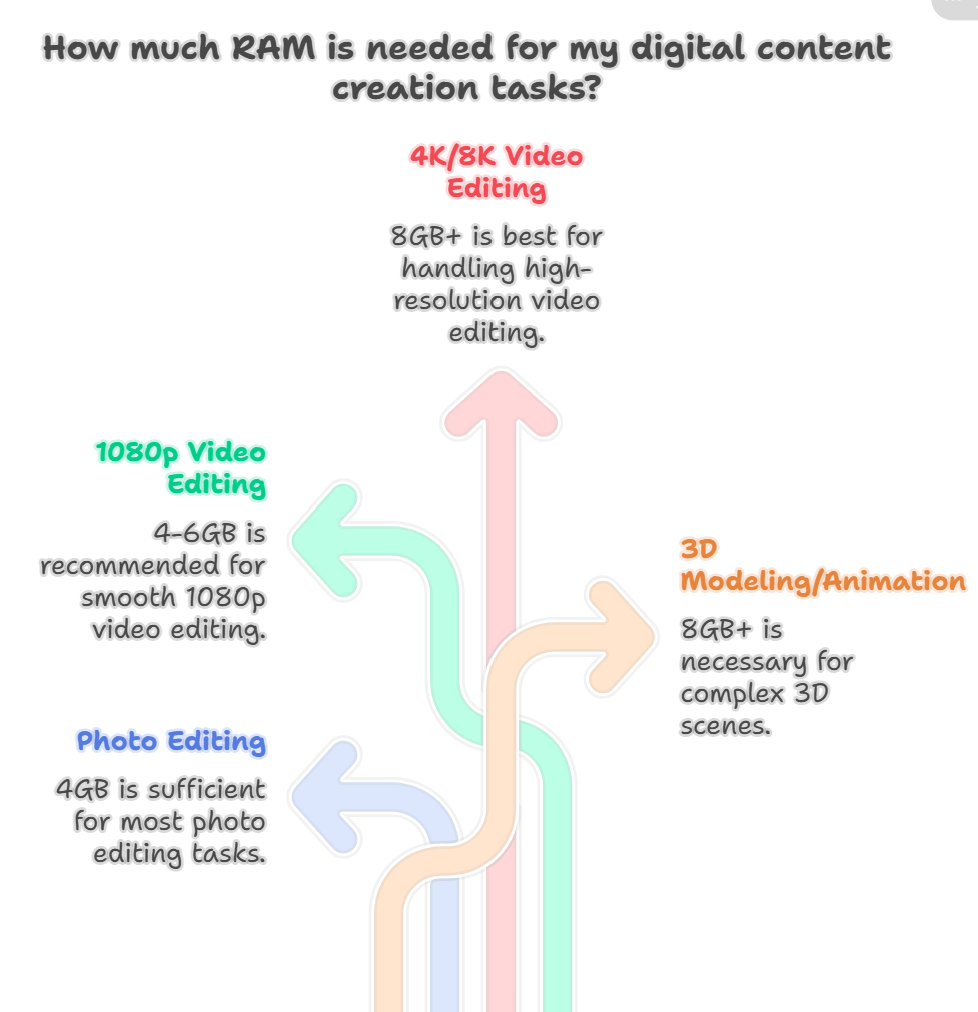
- Photo editing: 4GB is usually enough.
- Video editing (1080p): 4–6GB recommended.
- Video editing (4K/8K): 8GB+ is best.
- 3D modeling/animation: 8GB+ for complex scenes.
For Everyday Use
- Web browsing, office work, streaming: 2–4GB is plenty.
Pro Tip:
Always check the recommended specs for your favorite games or apps. Developers usually list the minimum and recommended VRAM.
How to Increase My VRAM: Is It Possible?
Here’s where things get tricky. VRAM is physically built into your graphics card, so you can’t just add more like you would with system RAM. But there are a few ways to “increase” your available video memory:
Upgrade Your Graphics Card
The most effective way. If you’re serious about gaming or content creation, investing in a new GPU with more VRAM is the best solution.
Adjust BIOS Settings (Integrated Graphics Only)
Some laptops and desktops let you allocate more system RAM as VRAM for integrated graphics. Here’s how:
- Restart your PC and enter the BIOS/UEFI (usually by pressing F2, Del, or Esc).
- Look for a setting like “Integrated Graphics” or “Video Memory.”
- Increase the allocated memory (if available).
Optimize Your System
- Close background apps to free up memory.
- Lower in-game graphics settings (especially texture quality).
- Update your GPU drivers for better memory management.
Use Cloud Gaming or Remote Rendering
In 2025, cloud gaming services like NVIDIA GeForce NOW or Xbox Cloud Gaming let you play demanding games on low-end hardware by streaming from powerful servers.
Risks and Benefits: Upgrading or Tweaking VRAM
Benefits
- Smoother gameplay and faster rendering
- Ability to run newer, more demanding software
- Future-proofing your system
Risks
- Upgrading a GPU can be expensive
- Allocating too much system RAM to integrated graphics can slow down your PC
- Not all systems allow VRAM adjustments
Features and Usability: VRAM in 2025
Modern GPUs come with smarter VRAM management, AI-powered memory allocation, and better compatibility with high-res displays. Many laptops now offer switchable graphics, letting you balance performance and battery life.
Windows 12 and macOS 15 have improved tools for monitoring VRAM usage, making it easier than ever to keep tabs on your video memory.
FAQs
Q. How do I check how much VRAM I have on Windows 11/12?
A. Go to Display Settings > Advanced Display Settings > Display Adapter Properties. Look for “Dedicated Video Memory.” You can also use Task Manager or DxDiag.
Q. How much VRAM do I need for gaming in 2025?
A. For 1080p gaming, 4–6GB is recommended. For 1440p, aim for 8GB. For 4K or VR, 12GB+ is ideal.
Q. Can I increase my VRAM without buying a new GPU?
A. If you have integrated graphics, you can sometimes allocate more system RAM as VRAM in the BIOS. For dedicated GPUs, you’ll need to upgrade the card.
Q. What happens if I don’t have enough VRAM?
A. You may experience lag, stuttering, lower frame rates, or crashes in games and creative apps. Lowering graphics settings can help, but upgrading is the best long-term fix.
Final Thoughts
How to check VRAM is a must for anyone who cares about performance—whether you’re gaming, editing, or just want a smooth experience. With the right tools and a little know-how, you can quickly find out how much VRAM you have, decide how much VRAM you need, and even explore ways how to increase your VRAM if you’re running into limits.
CLICK HERE FOR MORE BLOG POSTS

There’s a certain weight in the words John Authers writes—not just because of what he knows, but how he shares it. His voice doesn’t just echo facts; it builds meaning. In a world overwhelmed by rushed opinions and robotic summaries, John’s writing feels… different. It feels lived-in, thoughtful, and deeply human.
Readers don’t turn to John for headlines—they come for context. They come for that rare blend of clarity, insight, and emotional depth that turns financial journalism into something closer to storytelling. His reflections on markets, geopolitics, or human behavior aren’t just readable—they’re relatable.
What sets John apart isn’t just his experience (though he has plenty of it). It’s his ability to pause, reflect, and explain the why behind the what. He writes like someone who’s been in the room where it happens—but never forgets the reader who hasn’t.
In 2025, when AI churns out articles in milliseconds, John Authers still writes like a human—and that, more than anything, is what makes his work worth reading.